
Connect Trale to ChatGPT, Claude, and Other AI Apps
Here's how to hook up your Trale meeting data to any AI tool using MCP. Takes about 2 minutes.
So you know how you're always switching between Trale and ChatGPT or Claude to look up meeting details? That's annoying.
We built an MCP server so you can access all your Trale data directly from whatever AI app you're using. No more copying and pasting.
What You Can Do
Once it's set up, you can ask your AI assistant about:
- Meeting summaries and transcripts
- What someone said in a specific call
- Action items and follow-ups
- When you last talked to a contact
- Company interaction history
- Your calendar and upcoming meetings
It's basically like giving ChatGPT or Claude direct access to your meeting brain.
How to Set It Up
The setup is pretty straightforward. Here's how to do it for different apps.
If You Use Claude
- Open Settings in Claude (sidebar on web or desktop)
- Go to Connectors and click Browser connectors
- Search for Trale and click the + button
That's it. Claude will walk you through the login.
If You Use ChatGPT
Right now this only works in developer mode (ChatGPT's still rolling out MCP support).
- Go to Settings
- Turn on Developer mode under Advanced settings
- Click Create app and fill in:
- Name: Trale
- MCP Server URL:
https://app.trale.ai/api/mcp
- Click Create
To use it in a chat, click the + button and add Trale.
If You Use Claude Code
Open your terminal and run:
claude mcp add --transport http trale https://app.trale.ai/api/mcpThen run /mcp in your Claude Code session to authenticate.
If You Use Codex
Two ways to do this:
The Easy Way (CLI):
codex mcp add trale --url https://app.trale.ai/api/mcpThis will ask you to log in and connect automatically.
Note: First time using MCP in Codex? You need to enable it. Add this to ~/.codex/config.toml:
[features]
experimental_use_rmcp_client = true
The Manual Way:
Edit ~/.codex/config.toml and add:
[features]
experimental_use_rmcp_client = true

[mcp_servers.trale]
url = "https://app.trale.ai/api/mcp"
Then run codex mcp login trale to authenticate.
What This Actually Looks Like
Here's the kind of stuff you can do once it's connected:
Instead of this:
- Open Trale
- Search for the Acme Corp meeting
- Copy the summary
- Paste into ChatGPT
- Ask your question
You just do this: "What were the main concerns Acme Corp had in our call last week?"
And your AI assistant pulls it directly from Trale.
Other examples:
- "Show me all my action items from this week's meetings"
- "What did John say about pricing in our demo yesterday?"
- "When did I last meet with TechStart?"
- "Draft a follow-up email for my meeting with Sarah this morning"
Is This Secure?
Yeah. Here's what we're doing:
- You log in with OAuth (same security as connecting your Google account)
- You can revoke access anytime from your Trale settings
- We don't share your data with the AI companies
- All connections are encrypted
- We're GDPR compliant
Your meeting data stays private. The AI app just queries it when you ask a question.
Getting Started
Pick your AI app, follow the steps above, and you're done. Takes like 2 minutes.
If something breaks or doesn't work, email us at support@trale.ai and we'll help you sort it out.
Want more details? Check the full MCP docs if you're into that.
Les mer
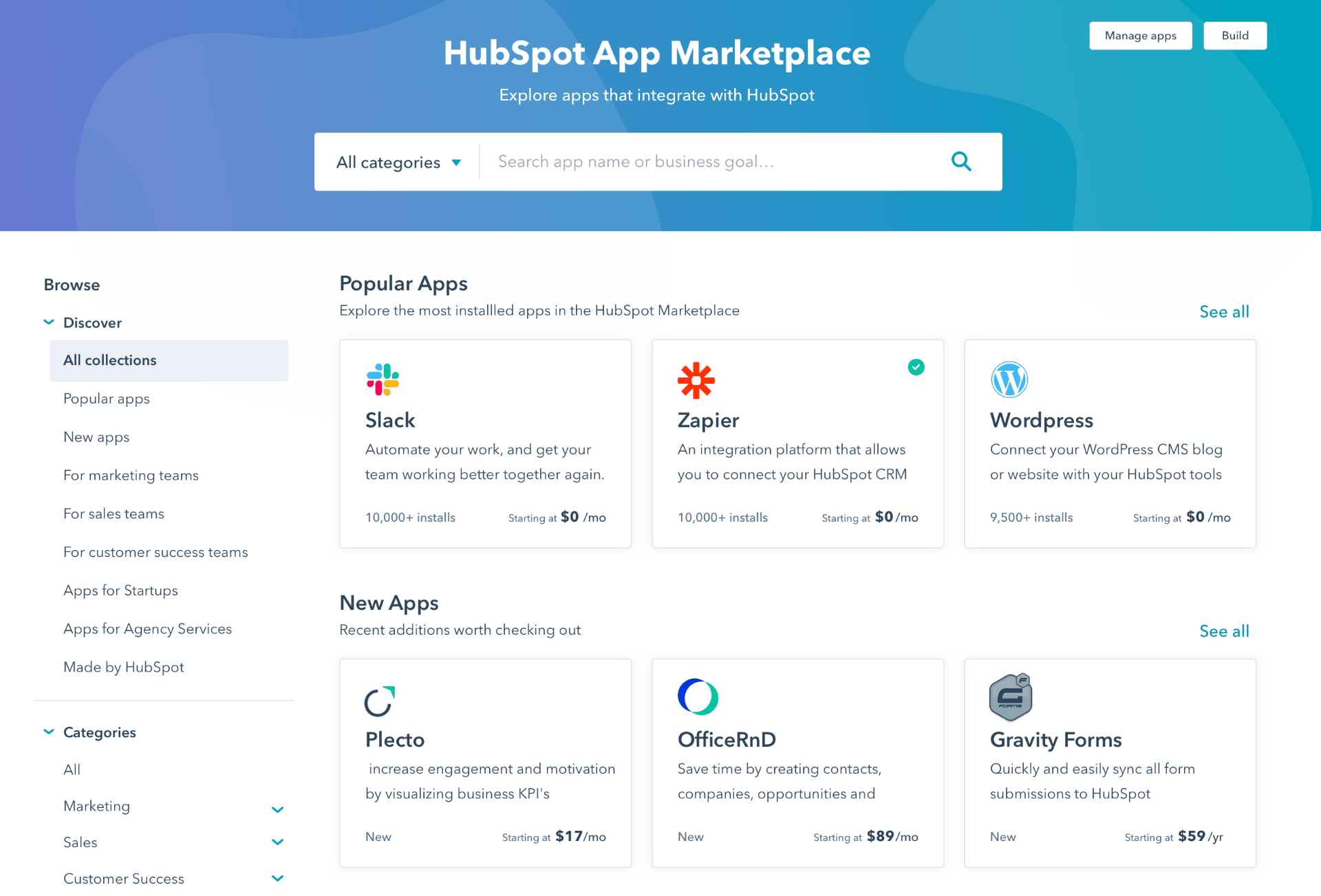
Trale Now Available on HubSpot Marketplace
We're thrilled to announce that Trale is officially available on the HubSpot Marketplace. HubSpot users can integrate Trale in minutes and start automatically syncing meeting notes.
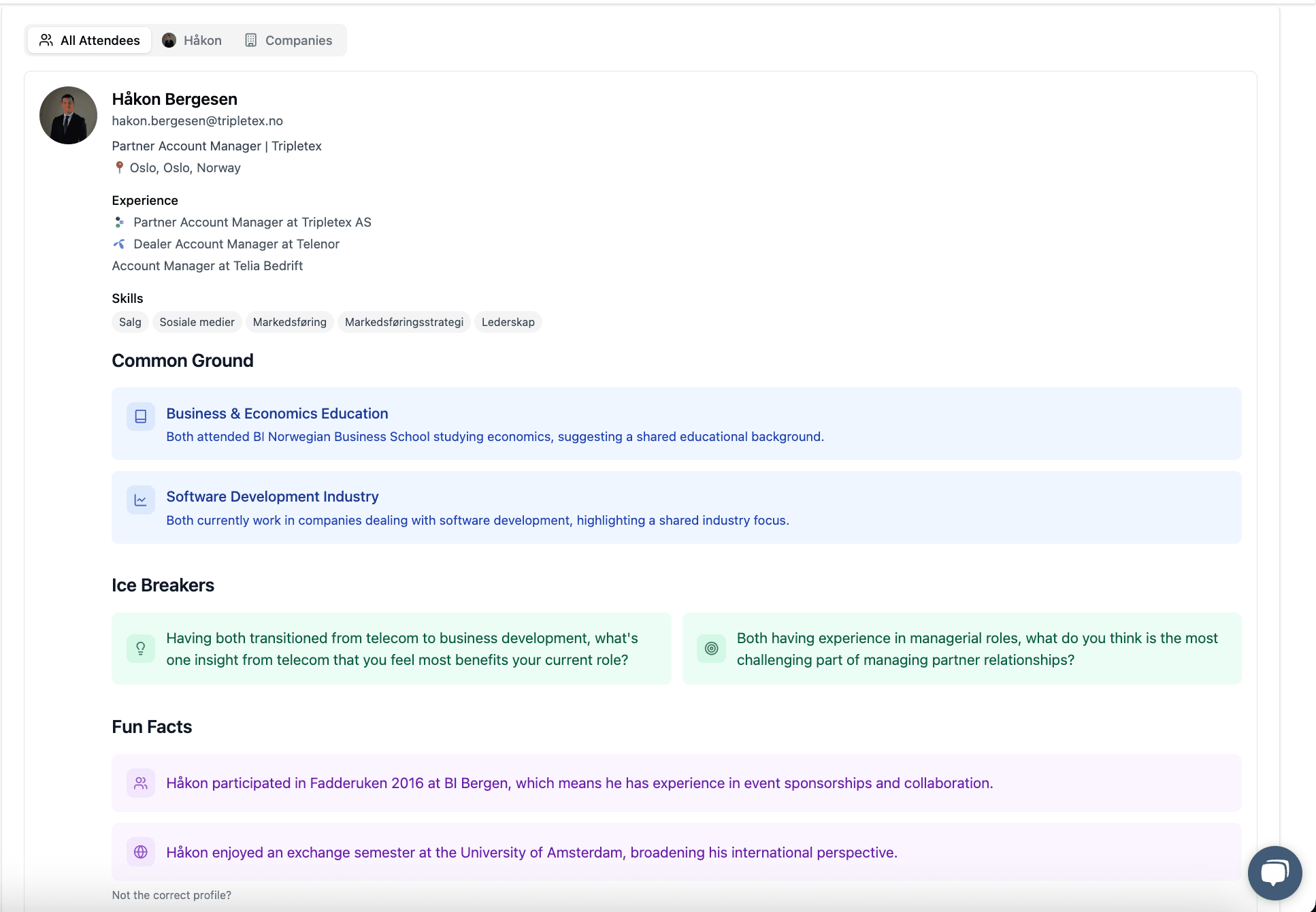
Feature Spotlight: Pre-Meeting Research That Gives You the Edge
Trale's Pre-Meeting Research tool gives professionals instant access to key insights about the people and companies they are meeting with.

Trale and SuperOffice Partner to Revolutionize Sales Efficiency
In a significant move to streamline sales processes, Supercompany, the creators of Trale, have entered into a strategic partnership with SuperOffice.